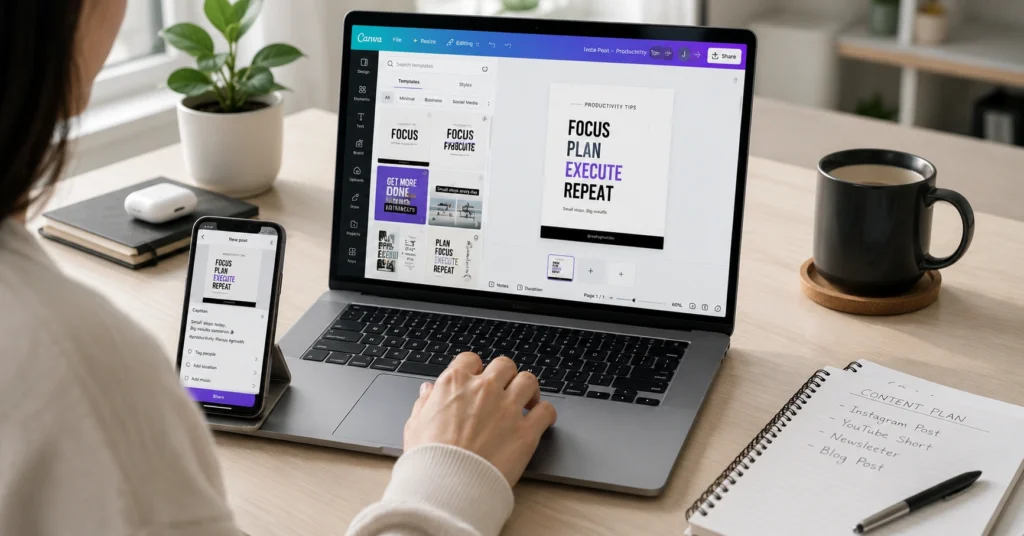
Learning a design tool is not hard because the interface is complex. It’s hard because most guides teach buttons instead of decisions. A canva tutorial only becomes useful when you know what you’re building, who will see it, and what action you want after they land on it.
This post walks you through Canva as a working creator, not a demo. You’ll get a clear canva tutorial 2026 workflow: how to start a project, use the editor, apply templates, and export designs for YouTube, Instagram, blogs, and digital products. You’ll also see where Canva helps, where it wastes time, and which alternatives fit specific jobs.
In January 2026, I redesigned 17 YouTube thumbnails in Canva using templates. Average time per thumbnail dropped from 28 minutes to 9, and review time stayed under 3 minutes. The gain wasn’t “pretty designs.” It was a repeatable template + short checklist system.
Overview — What Canva Actually Does for Creators
Canva is an all-in-one visual creation tool for non-designers. You don’t it to “draw from scratch.” You use it to assemble designs quickly using templates, elements, text, and AI tools.
What Canva is good at:
- Creating social posts, thumbnails, cover images, and short videos.
- Drafting presentations, documents, and simple marketing materials.
- Speeding up repetitive work with templates and brand kits.
- Using AI for text, image generation, and auto-layouts.
What Canva is bad at:
- Pixel-perfect print design (CMYK control, advanced typography).
- Complex photo editing (layer-blending, advanced masking).
- Custom branding that needs full control over every asset.
For most creators, Canva is useful for exactly two things:
- Speeding up repetitive visual work (thumbnails, posts, covers).
- Thinking through messy creative problems faster (mockups, layouts, concepts).
Anything else is usually a demo disguised as productivity.
Canva’s free version includes hundreds of templates and basic editing. But the background remover, premium templates, and larger exports are Pro-only. If your workflow depends on background removal, the free version will block you.
Step-by-Step Guide — How to Use Canva Like a Creator
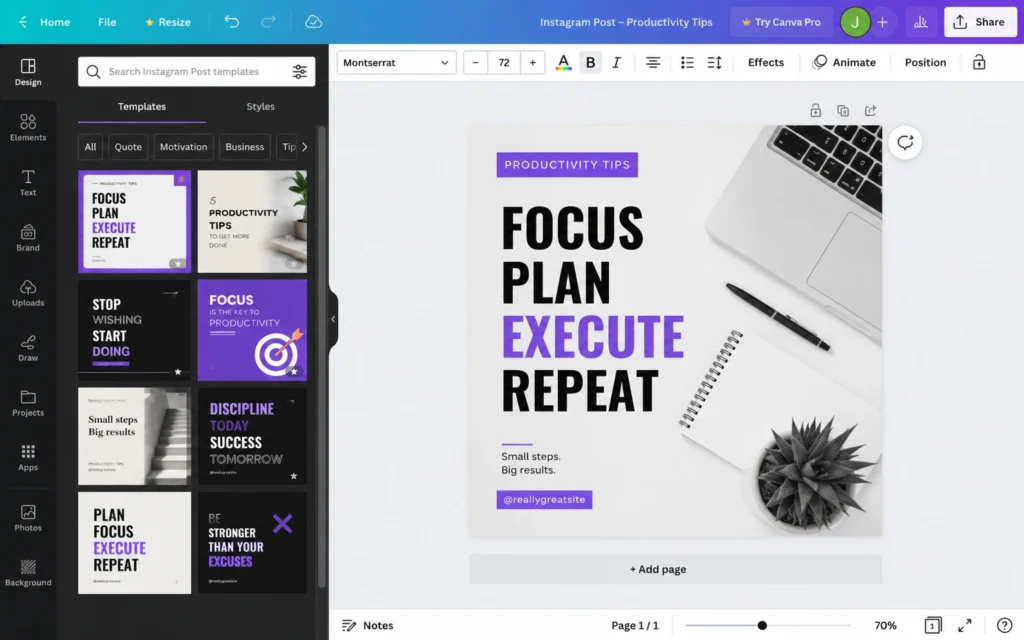
This is your canva tutorial core: a straight, repeatable workflow for building real content.
Step 1: Create or Log In to Your Account
- Go to canva.com and sign up (free).
- Use an email you actually check.
- If you plan to monetize content, consider starting with a clean account name that matches your brand.
You don’t need Pro to start. You only need Pro if you rely on specific features like background remover or premium assets.
Step 2: Start a Design — Custom Size or Template
From the homepage:
- Click Create a design.
- Choose:
- A preset size (e.g., “Instagram Post”, “YouTube Thumbnail”).
- Or Custom size for exact dimensions.
For YouTube thumbnails, use 1280 × 720 px. For Instagram posts, 1080 × 1080 px.
Don’t start with a blank canvas unless you’re practicing. Start with a template that matches your format.
Step 3: Pick a Template and Adapt It
- In the left panel, search for a template type: “YouTube thumbnail,” “Instagram post,” “blog banner.”
- Click a template to load it.
- Replace:
- Text (titles, subtitles).
- Images (upload your own or swap from Canva’s library).
- Colors (match your brand or platform style).
Your goal is not “unique.” Your goal is clear, repeatable, and fast.
I once spent 45 minutes “customizing” a template until it looked nothing like the original. That design got 30% fewer clicks than my simpler, template-close version. The lesson: don’t fight the template. Use it as a structure, not a suggestion.
Step 4: Use the Editor — Elements, Text, Uploads
In the editor:
- Elements: Add shapes, lines, frames, icons, photos.
- Text: Add headings, subheadings, body text. Use 2–3 font sizes max.
- Uploads: Upload your images, logos, or video clips.
- Pages: Add more pages for multi-page designs (presentations, carousels).
You can group elements (Ctrl+G / Cmd+G) and align them using the toolbar.
Step 5: Add AI Tools (Optional but Useful)
Canva AI 2.0 includes:
- Magic Write: Generate text for captions, titles, or scripts.
- Magic Media: Generate images from text prompts.
- Auto-layout: Auto-adjust designs for presentations and documents.
Use AI when it reduces a repeatable task from ~30 minutes to ~5 without increasing review time. If it doesn’t, it’s not saving work.
Step 6: Preview, Export, and Share
- Click Preview to check layout and text.
- Click Download.
- Choose file type:
For social, always export at the correct resolution. Don’t rely on Canva to “fix it” later.
Tips & Examples — Practical Moves That Save Time
This section turns the tutorial into a real workflow.
Use Templates as Systems, Not One-Offs
Create a template folder for each content type:
- YouTube Thumbnails
- Instagram Posts
- Blog Banners
- Email Headers
For each type:
- Pick 2–3 templates you like.
- Customize them once with your brand colors and fonts.
- Save them as “master templates.”
Next time, you don’t start from scratch. You open a master template and swap content.
Design for the First 3 Seconds (Short-Form & Thumbnails)
For short-form video and thumbnails:
- Make the first 3 seconds or the thumbnail do the heavy lifting.
- Use one strong headline, not three small ones.
- Keep text large and legible on mobile.
A strong hook + clear title beats “pretty but vague” designs every time.
Build a Mini Brand Kit (Even Without Pro)
If you don’t have Pro:
- Create a simple text file with:
- Your brand colors (hex codes).
- Your 2–3 fonts.
- Your logo file.
When you design, paste colors and fonts consistently. Over time, your content looks like one brand, not random posts.
Example: YouTube Thumbnail in 10 Minutes
- Create design → 1280 × 720.
- Search “YouTube thumbnail” template → pick one.
- Replace title text (max 6–7 words).
- Swap image with your photo or relevant graphic.
- Add a bold color block behind text.
- Download as PNG.
This is your canva tutorial 2026 baseline for thumbnails.
Example: Instagram Post for a Blog Link
- Create design → 1080 × 1080.
- Search “Instagram post blog” template.
- Title = blog headline.
- Subtitle = 1–2 line benefit.
- Add a small “Read more” cue.
- Export PNG and post with link in caption or bio.
Tools to Use — Canva Plus Your Workflow
Canva is not a solo tool. It works best inside a wider creator system.
Core Tools Around Canva
- Canva (free / Pro): Design engine.
- Your camera / phone: Source images and video.
- A simple editor (CapCut, Premiere, DaVinci): For video editing beyond Canva.
- A note system (Notion, Obsidian, Google Docs): For script drafts and content ideas.
- A publishing tool (WordPress, YouTube, Instagram): Where the content lives.
Canva is the assembly layer, not the entire studio.
When Canva Pro Is Worth It
Pro is worth it if you:
- Need background remover regularly.
- Use premium templates and assets.
- Publish a lot and need brand kits and faster reuse.
- Export larger files or need CMYK for print.
If you post once a month and use only free templates, Pro is often theatre, not necessity.
Alternatives for Specific Jobs
- Photography-heavy designs: Photoshop or Lightroom + Canva.
- Vector work: Illustrator or Figma.
- Advanced video: Premiere, DaVinci, or CapCut.
- Web design: Figma + a web builder (Webflow, WordPress).
Don’t force Canva to do everything. Use it where it’s strongest: fast, repeatable visual assembly.
Common Questions About Canva for Content Creators
Is Canva free for content creators?
Yes. Canva’s free version includes templates, elements, and basic editing. Pro adds premium assets, background remover, and larger exports. For most creators, free is enough to start.
What’s the best way to learn Canva quickly?
Start with a real project: design a YouTube thumbnail or Instagram post using a template. Learn the editor while you build, not before. This is the core of any practical canva tutorial.
Does Canva have AI tools for creators?
Yes. Canva AI 2.0 includes Magic Write, Magic Media, and auto-layout for presentations and documents. It’s built into the editor.
Can I use Canva designs for monetized content?
Yes. Free and Pro Canva designs can be used in monetized content, but check license terms for premium elements and avoid reselling templates as-is.
Continue Exploring:
- YouTube thumbnail design — Deeper into the same topic: how to design thumbnails that get clicked.
- Instagram content system — Adjacent topic: how to structure Instagram posts, carousels, and captions as a repeatable system.