Most short-form videos fail before anyone sees them because the edit is sloppy, the hook is weak, or the captions are hard to read. The best video editing apps don’t fix bad ideas, but they do let you execute good ones fast.
I’ve edited hundreds of Reels and TikToks on CapCut, VN, LumaFusion, and even iMovie. The pattern is simple: CapCut wins for speed and built-in features, VN is the best free alternative without a water mark, and LumaFusion is the best paid option if you want real control on mobile.
This post shows you which app to pick, how to set it up for short-form, and the exact steps to turn raw clips into a finished Reel or TikTok in under 20 minutes.
Overview — What Makes an App Actually Good for Short-Form
Short-form video isn’t just “short video.” It’s a format where the first 2–3 seconds decide whether anyone watches the rest. The best video editing apps for short-form share three traits:
- Fast hook editing – you can trim, split, and rearrange clips in seconds.
- Built-in captions or easy caption workflow – most viewers watch without sound.
- Export presets for 9:16 – no manual resizing or awkward cropping.
CapCut is the top video editing app for this because it combines auto-captions, trending templates, and one-tap Reels/TikTok export in the free tier. VN is close behind but lacks some AI features. LumaFusion is more powerful but takes longer to learn.
A common mistake is picking an app because it looks “professional” on paper. If you can’t publish a Reel in under 15 minutes with it, it’s too slow for short-form.
Step-by-Step Guide — Edit a Reel or TikTok in Under 20 Minutes
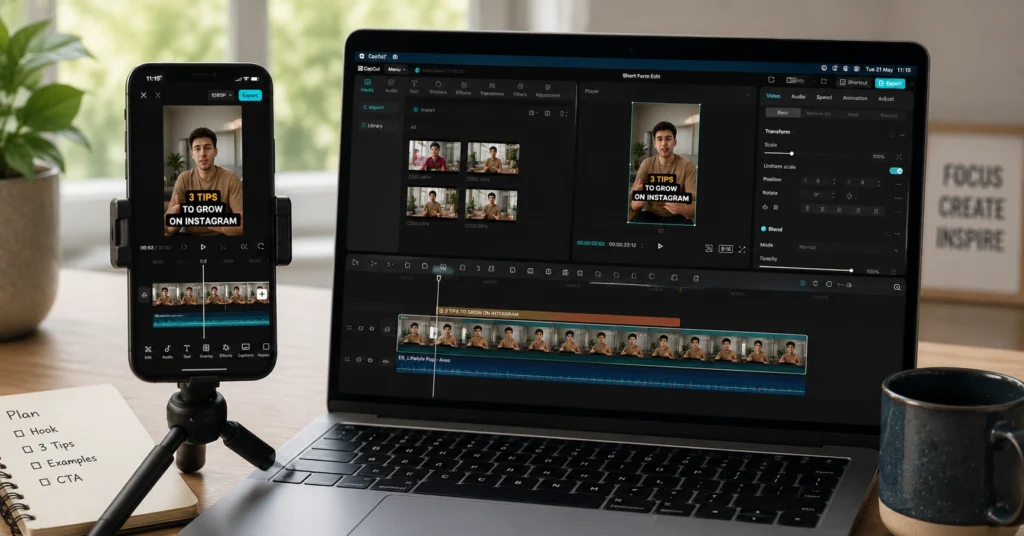
Answer first: use CapCut on mobile or desktop, import your clips, add auto-captions, trim the first 3 seconds to a strong hook, add one or two transitions, then export in 9:16 at 1080p.
Here’s the exact workflow I use:
Step 1: Import and trim raw clips
Open CapCut → New project → select your clips.
Immediately cut out dead air at the start and end of each clip. Keep only what moves the idea forward.
For short-form, aim for 15–45 seconds total. If your idea needs more time, you likely need two videos, not one long one.
Step 2: Build the hook in the first 3 seconds
Place your strongest visual or line first.
In CapCut, split the clip at 2–3 seconds, move a text overlay or zoom effect right at the start.
The hook should answer: “What will I get if I keep watching?”
Step 3: Add auto-captions
CapCut → Text → Auto captions → Generate.
Check for spelling errors. Short-form captions should be:
- Large and high-contrast
- Broken into 2–4 words per line
- Centered or slightly lower-third
Auto-captions are not perfect. Plan 3–5 minutes to fix mistakes.
Step 4: Add pacing and transitions
Use jump cuts, not fancy transitions, for most of the video.
Add one subtle transition (like a quick zoom or slide) between major sections.
CapCut’s “Zoom In/Out” and “Slide” transitions work well without looking cheap.
Step 5: Add music and sound effects
Use trending audio from TikTok/Reels or CapCut’s library.
Keep music volume low enough that voice is clear.
Add a subtle “whoosh” or “click” sound on key text appearances.
Step 6: Export in 9:16 at 1080p
CapCut → Export → Resolution: 1080p → Ratio: 9:16 → Frame rate: 30 or 60 fps.
Avoid 4K unless you know your audience watches on high-end devices; it increases file size without improving retention.
This workflow takes 12–18 minutes once you’ve done it 5–10 times. The first time, expect 25–30 minutes.
how to make Reels without wasting hours
Tips & Examples — How to Get Better at Short-Form Editing Fast
The difference between a weak Reel and a strong one is rarely the app. It’s how you use it.
Use templates, but don’t rely on them
CapCut’s templates are great for learning pacing and structure.
Pick a template you like, then:
- Replace the clips
- Keep the rhythm
- Change the text and music to fit your niche
After 5–10 templates, start building your own edits from scratch using the same timing.
Edit for retention, not perfection
Short-form is forgiving. A slightly shaky clip is fine if the idea is clear.
Focus on:
- Clear audio
- Strong hook
- Tight cuts
- Readable captions
Perfection kills output. Output builds audience.
Save your own presets
In CapCut, save:
- Your caption style (font, size, color, position)
- Your preferred transition
- Your export settings
This cuts editing time by 30–40% after a few weeks. I lost an hour on my first 10 Reels because I didn’t do this.
Film with editing in mind
Shoot in short bursts:
- 3–5 second clips
- Multiple angles when possible
- A few seconds of “safe” footage at start/end for trimming
This makes editing 2× faster because you’re not hunting for usable clips.
Tools to Use — Best Video Editing Apps Compared
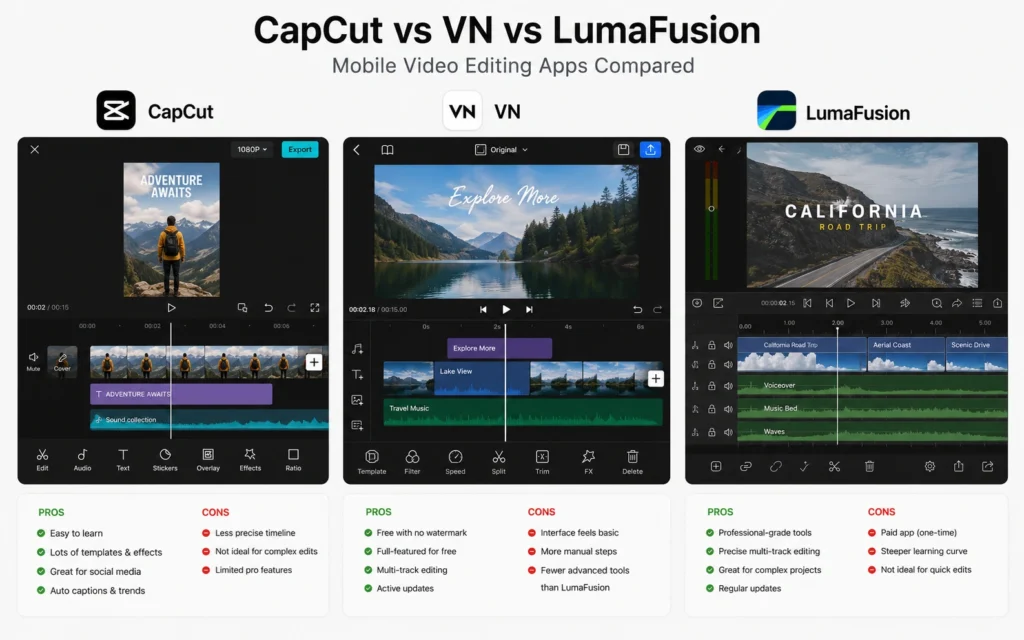
Here’s the best video editing apps comparison for short-form in 2026, focused on what actually matters for Reels and TikTok.
CapCut — Best overall for short-form
What it’s good at:
- Auto-captions that work well out of the box
- Built-in templates and trending effects
- One-tap 9:16 export for TikTok and Reels
- Free tier is fully usable
What it’s bad at:
- Some advanced features locked behind Pro
- Can feel “trendy” if you overuse effects
- Privacy concerns for some users (data collection)
Best for: Beginners and intermediates who want speed and built-in features.
CapCut is the best video editing app for most creators making short-form content in 2026.
VN — Best free alternative without water mark
What it’s good at:
- Completely free with no water mark
- Clean, multi-track timeline
- Good color tools and keyframe animation
- Works well on mid-range phones
What it’s bad at:
- No built-in auto-captions (you must add text manually)
- Fewer templates than CapCut
- Smaller community, fewer tutorials
Best for: Creators who want a free, privacy-conscious app without CapCut’s AI features.
VN is a strong top video editing app if you don’t want to use CapCut.
LumaFusion — Best paid mobile editor
What it’s good at:
- Multi-track editing with real control
- Advanced audio mixing
- Color correction and keyframe animation
- No subscription, one-time purchase
What it’s bad at:
- Paid upfront (~$30–40)
- Steeper learning curve
- iOS and Android only (no desktop yet)
Best for: Creators who want professional-grade control on mobile and are willing to learn.
iMovie — Best free option for iPhone beginners
What it’s good at:
- Free on all iPhones and Macs
- Simple, intuitive interface
- Good for basic cuts and titles
What it’s bad at:
- No auto-captions
- Limited transitions and effects
- Not optimized for short-form workflows
Best for: Complete beginners on iPhone who want to start simple before moving to CapCut or LumaFusion.
Desktop options (if you prefer larger screens)
- CapCut Desktop – Free, fast, same core features as mobile. Best for short-form on Windows/Mac.
- DaVinci Resolve – Free, powerful, but overkill for most short-form. Steep learning curve.
- Final Cut Pro – Great for long-form, expensive for short-form only.
- Premiere Pro – Subscription-based, powerful but slow for quick Reels.
For short-form, mobile-first apps still win on speed.
Common Mistakes and How to Avoid Them
Mistake 1: Editing too much
You don’t need 20 effects.
You need:
- Clear hook
- Tight cuts
- Readable captions
- One or two subtle effects
Mistake 2: Ignoring audio
Bad audio kills retention faster than bad visuals.
Use:
- A budget lapel mic or phone mic close to your mouth
- Noise reduction in CapCut if needed
- Music low enough to hear voice clearly
Mistake 3: Using 4K for everything
4K increases file size and rendering time.
For Reels and TikTok, 1080p at 30fps is enough.
Mistake 4: Posting without testing captions
On mobile, check:
- Are captions readable at small size?
- Do they stay inside the safe zone (not covered by UI)?
- Are there spelling errors?
Fix these before publishing.
Frequently Asked Questions About Best Video Editing Apps
What is the best video editing app for short-form content in 2026?
CapCut is the best overall app for short-form content because it combines strong auto-captions, hooks, transitions, and TikTok/Reels export presets in one free tier. For iPhone users who want more control, LumaFusion is the best paid option.
Are free video editing apps good enough for Reels and TikTok?
Yes. CapCut and VN are free and fully capable for Reels and TikTok. They include auto-captions, templates, and export sizes optimized for each platform. You only need paid tools if you want advanced color grading or multi-track desktop workflows.
Which app is best for beginners editing short videos?
CapCut is the best for beginners because it has drag-and-drop editing, pre-built templates, and auto-captions that work out of the box. If you’re on iPhone and want something simpler, iMovie is a solid free starting point.
Do I need a powerful phone to edit short-form video?
No. CapCut and VN use proxy files and efficient rendering, so even mid-range phones from 2022–2024 can handle 1080p short-form editing smoothly. You only need a high-end device for heavy effects, 4K, or multi-layer projects.