Most knowledge workers I talk to have the same problem: they’ve signed up for five different AI tools, used each one twice, and still spend their evenings catching up on work that should have been done by 3 PM.
The issue isn’t the tools. It’s that most advice about AI productivity treats every task the same way. You don’t use AI to draft an email the same way you use it to summarize a meeting or prioritize your inbox. When you apply the wrong approach, you spend more time editing the output than you would have just doing the work yourself.
AI productivity tools are useful when they handle repetitive thinking work—sorting, drafting, summarizing, comparing. They’re useless when you ask them to do work that requires judgment you haven’t clarified yet. This guide maps out which tools fit which parts of your day, based on what actually survives contact with real work.
You’ll leave with a clear framework for matching AI tools to specific tasks, a shortlist of tools worth testing, and the exact mistakes that turn AI from a time-saver into a time-waster.
What AI Productivity Tools Actually Do (And What They Don’t)
AI productivity tools automate the thinking work that slows you down: drafting first versions, organizing messy information, summarizing long documents, and generating options when you’re stuck. They don’t replace judgment. They don’t make decisions for you. They don’t understand your work context unless you tell them.
I tested this last month when I tried to automate my weekly client reports. The AI could pull data and write summaries in 90 seconds—a task that used to take me 25 minutes. But it took me three weeks to build the workflow because I kept skipping the step where I defined what “good” looked like. The tool was fast. My instructions were vague. The output was unusable.
Most AI productivity tools fall into four categories:
Writing and drafting tools handle emails, reports, proposals, and content. They’re fastest when you give them structure: a template, key points, or an example of what you want.
Summarization tools condense meeting transcripts, long articles, or research documents. They work best when you tell them what to look for—decisions made, action items, key arguments—rather than asking for a general summary.
Organization and prioritization tools sort emails, rank tasks, or categorize information. These require you to define your criteria first. “Important” means different things to different people.
Research and comparison tools gather information, compare options, or analyze data. They’re useful for first-pass research but always need human verification.
The mistake most beginners make: they treat AI like a search bar. They ask vague questions and expect specific answers. The tool isn’t the problem. The prompt is.
The AI Productivity Stack: Three Layers That Actually Save Time
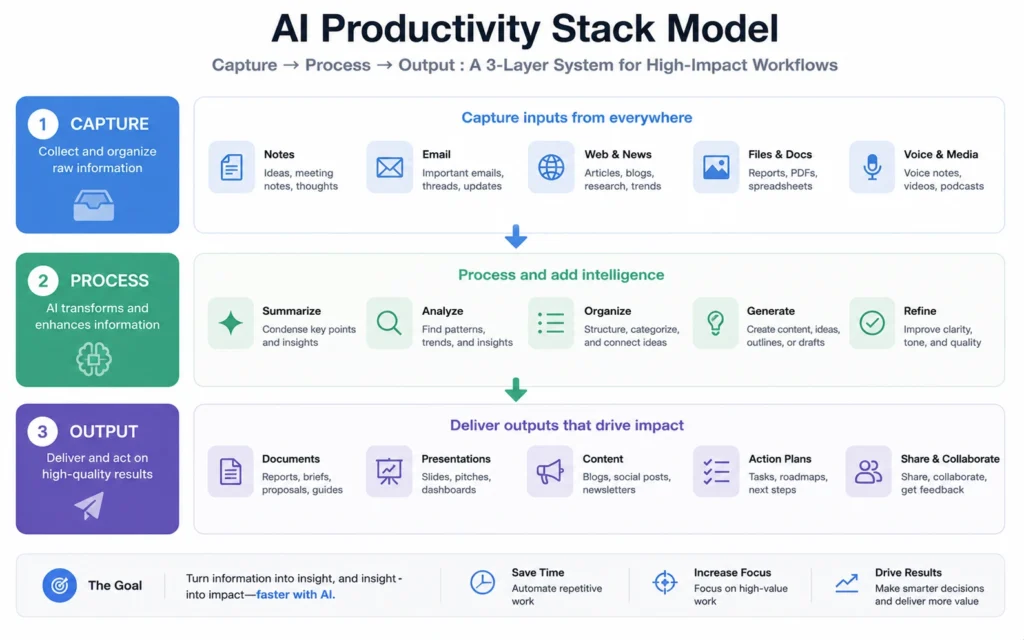
Stop thinking about AI tools as individual apps. Think about them as layers in a workflow. I use what I call the AI Productivity Stack Model, which maps tools to three distinct phases of knowledge work: Capture, Process, and Output.
Layer 1: Capture — This is where information enters your system. Emails arrive. Meeting notes get written. Ideas show up in random places. AI tools here help you sort and tag incoming information so it doesn’t pile up. Examples: email filters that auto-categorize messages, tools that extract action items from meeting transcripts, apps that organize research links.
Layer 2: Process — This is where you transform raw information into something usable. You’re summarizing, synthesizing, comparing, or restructuring. AI tools here do the heavy lifting of first-draft thinking. Examples: summarizing a 40-page report into key findings, turning bullet points into a structured outline, comparing three vendor proposals side-by-side.
Layer 3: Output — This is where you create the final product. The email you send. The report you submit. The presentation you deliver. AI tools here help you polish, reformat, or adapt content for different audiences. Examples: rewriting a technical document for non-technical readers, converting a report into slide format, adjusting tone for different stakeholders.
The reason this matters: most people try to use one tool for all three layers. It doesn’t work. A tool that’s great at capturing and organizing information (like a smart inbox) is terrible at producing polished output. A tool that writes great emails won’t help you sort through 200 unread messages.
I learned this the hard way when I spent two months trying to make a single AI writing tool handle my entire workflow. It could draft decent emails, but it couldn’t prioritize my inbox or summarize my meeting notes. I was forcing one tool to do three different jobs. Once I mapped my tasks to the three layers and picked tools for each layer, I cut my admin time from 90 minutes a day to about 20.
For beginners, start with Layer 2 (Process). It’s where AI saves the most time with the least setup. Pick one repetitive task you do every week—summarizing meeting notes, drafting status updates, organizing research—and find one tool that does that specific job well. Master that before you add more layers.
Where Beginners Waste Time (And How to Avoid It)
The most common mistake isn’t picking the wrong tool. It’s skipping the step where you define what success looks like.
I see this constantly: someone signs up for an AI tool, asks it to “write a better email” or “summarize this document,” gets mediocre output, and concludes that AI doesn’t work. The tool did exactly what it was asked. The question was too vague.
Here are the specific errors that kill AI productivity for beginners:
Error 1: Asking for “better” without defining better. “Better” could mean shorter, clearer, more formal, more persuasive, or more detailed. The AI doesn’t know which one you want. Instead, say: “Make this 30% shorter” or “Rewrite this for a non-technical audience” or “Add specific examples to support each point.”
Error 2: Using AI for one-off tasks. If you’re only going to use a workflow once, it’s not worth the setup time. I spent 45 minutes building a prompt to analyze a single competitor’s website. That was stupid. I should have just done it manually. AI workflows are worth building when you’ll repeat the task at least five times.
Error 3: Skipping the review step. AI output always needs editing. Always. The question isn’t whether you’ll review it. It’s how long review will take. If review takes longer than doing the work yourself, the workflow isn’t saving time. I track this: if a workflow saves 15 minutes but requires 20 minutes of editing, I delete it.
Error 4: Trying to automate judgment. AI can draft options. It can’t decide which option is right for your specific situation. I used to ask AI to prioritize my task list. It would give me logically sound rankings that were completely wrong for my actual priorities. Now I use AI to surface patterns (“You have three deadlines this week”) and make the judgment call myself.
Error 5: Tool hopping. Beginners often think the problem is the tool. They try ChatGPT, get mediocre results, switch to Claude, get slightly different mediocre results, switch to another tool, and repeat. The problem usually isn’t the tool. It’s the prompt structure or the workflow design. Pick one tool. Learn it well for 30 days. Then evaluate.
The fix for all of these errors is the same: be specific about the task, the constraints, and the success criteria before you ask AI to do anything.
Tools Worth Testing in 2026 (And Which Layer They Fit)
I’m not going to give you a list of 50 AI tools. You don’t need 50 tools. You need three or four that fit your actual workflow. Here are the categories worth testing, matched to the three layers of the AI Productivity Stack.
For Layer 1 (Capture): Email management tools that auto-categorize messages and draft quick responses. Meeting transcription tools that extract action items and decisions. Bookmark organizers that tag and summarize saved articles. These tools prevent information from piling up in the first place.
For Layer 2 (Process): Writing assistants that turn bullet points into drafts. Summarization tools that condense long documents. Research tools that compare options side-by-side. These are the highest-impact tools for most knowledge workers because they handle the thinking work that takes the most time.
For Layer 3 (Output): Formatting tools that convert documents into presentations. Tone adjusters that rewrite content for different audiences. Proofreading tools that catch errors and suggest clarity improvements. These tools polish work that’s already mostly done.
For beginners in 2026, I recommend starting with one tool from Layer 2. Pick the task you do most often that involves transforming information: turning notes into emails, summarizing reports, drafting updates. Find one tool that does that specific job. Use it for 30 days. Track whether it actually saves time.
Don’t sign up for five tools at once. Don’t try to automate your entire workflow in week one. Start small. Prove value. Then expand.
Advanced Moves: When to Skip AI Entirely
Here’s something most AI guides won’t tell you: sometimes the best productivity move is to not use AI at all.
AI is worth using when the task is repetitive, the success criteria are clear, and the editing burden is lower than doing it yourself. It’s not worth using when the task requires judgment you haven’t clarified, when you’re doing it for the first time, or when the relationship matters more than the output.
I stopped using AI for three types of work:
First drafts of important emails to people I care about. The time saved isn’t worth the risk of sounding generic or missing nuance. If the relationship matters, write it yourself.
Strategic thinking. AI can organize your thoughts. It can’t replace the thinking itself. I use AI to structure ideas after I’ve done the thinking, not to do the thinking for me.
Tasks I only do once a year. The setup time always exceeds the time saved. Just do it manually.
The advanced move isn’t using more AI. It’s knowing when not to.
Your Next Step
Pick one repetitive task you do every week. Write down exactly what “done” looks like. Find one AI tool that handles that specific task. Test it for two weeks. Track whether it actually saves time.
That’s it. Don’t overthink this. Don’t sign up for five tools. Don’t try to automate everything. Pick one task. Solve that. Then move to the next one.
Frequently Asked Questions About AI Productivity Tools
How much time do AI productivity tools actually save?
It depends on the task and your workflow design. For repetitive tasks like summarizing meeting notes or drafting status updates, well-designed AI workflows save 15-20 minutes per use. The key is that the editing time must be lower than doing it yourself. If you spend 25 minutes editing a 5-minute AI draft, you’re not saving time. Track your actual time for two weeks before deciding if a tool is worth keeping.
What’s the best AI productivity tool for complete beginners?
Start with a general writing assistant like ChatGPT or Claude for Layer 2 tasks (processing and transforming information). These tools are flexible enough to handle multiple tasks—drafting emails, summarizing documents, organizing notes—without requiring complex setup. Pick one task you do weekly, learn to write clear prompts for that task, and master it before adding more tools or tasks.
Do I need to learn prompt engineering to use AI productivity tools?
You need basic prompt clarity, not advanced prompt engineering. The difference: prompt engineering is about complex prompt structures and optimization. Prompt clarity is about telling the AI exactly what you want, with specific constraints and examples. For most productivity tasks, clarity is enough. Say “Write a 150-word status update for my manager covering these three projects” instead of “Write a status update.” That’s clarity, not engineering.
How do I know if an AI tool is actually saving time?
Track two numbers for two weeks: time spent doing the task manually, and time spent using AI (including prompt writing and editing). If AI time is lower, the tool saves time. If it’s the same or higher, either your prompt needs work or the task isn’t a good fit for AI. Most beginners overestimate time saved because they don’t count prompt writing and editing. Be honest about the full workflow time.
Can AI productivity tools replace my current software?
Usually no, and that’s not the goal. AI tools work best as layers on top of your existing software, not replacements. AI can draft an email in Gmail, summarize a document in Google Docs, or organize tasks in your project manager. But it won’t replace those tools entirely. Think of AI as an assistant that works inside your existing workflow, not a new workflow that replaces everything.
Continue Exploring:
- Learn prompt engineering basics to write clearer instructions for AI tools.
- See ChatGPT workflow examples for specific tasks you can automate this week.