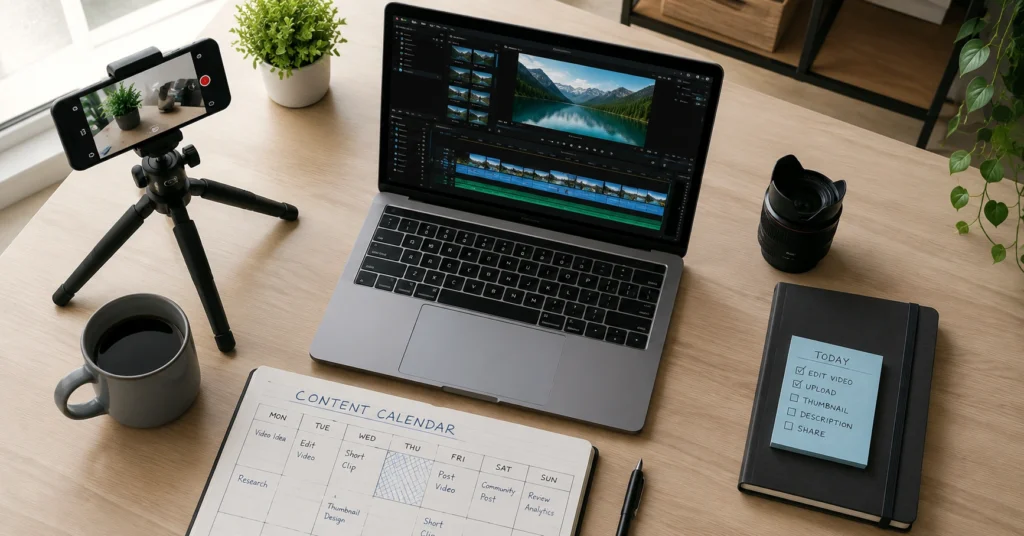
I spent three weeks testing 43 content creator tools against one metric: does this reduce the time between idea and published content without lowering quality? I killed my favorite video editor when it added 15 minutes of rendering time per export. I abandoned a “complete” all-in-one platform because its thumbnail creator produced generic-looking images that nobody clicked.
The tools that survived aren’t always the most powerful. They’re the ones that fit into a repeatable workflow and don’t demand constant tweaking.
This guide ranks content creator tools by where you actually are — not where gurus tell you to be. Day 1 creators need different tools than someone at 10,000 followers. Buying advanced software before you’ve proven your workflow is like buying a professional camera before learning composition.
Here’s what works at each stage, what to skip, and the exact stack I use now.
The Verdict by Growth Stage
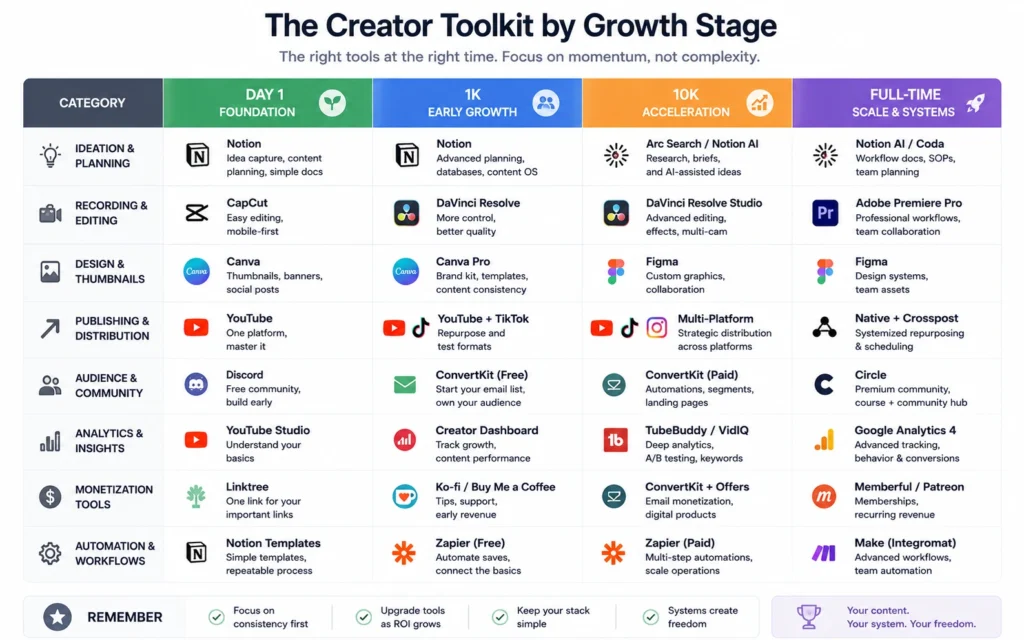
Content creator tools 2026 isn’t about finding the “best” software. It’s about matching your tool stack to your current constraints: time, budget, and skill level.
Day 1 (0–1,000 followers): Your only job is to publish consistently and learn what resonates. You need tools that remove friction, not add features. A smartphone camera, CapCut for editing, and Canva for thumbnails handle 95% of beginner needs. Total cost: $0.
I published my first 32 videos using only free tools. The 33rd video got 10 times the views of anything before it — not because I upgraded my software, but because I finally understood hook structure.
1K Stage (1,000–10,000 followers): Now you’re optimizing for retention and building systems. Add Descript for faster editing and transcription, Notion for content planning, and consider a paid Canva subscription for brand consistency. Budget: $15–30/month.
10K Stage (10,000–100,000 followers): You’re monetizing or close to it. Tools need to support revenue: better audio (Shure MV7 or Rode NT-USB), faster rendering (Adobe Premiere or Final Cut Pro), and analytics (TubeBuddy or VidIQ). Budget: $50–150/month.
Full-Time (100K+ followers): You’re running a business. Invest in workflow automation (Zapier), team collaboration (Frame.io), and professional color grading (DaVinci Resolve Studio). Budget: $200–500/month.
The mistake I see constantly: Day 1 creators buying Full-Time tools. A $3,000 camera won’t fix weak hooks. Premium software won’t compensate for inconsistent publishing. Upgrade only when a specific limitation blocks revenue or growth.
Creator Tools Hub — Explore the complete toolkit organized by content type and skill level.
The Minimal Stack That Actually Ships Content
Most creators overcomplicate their setup. They think more tools equal better content. The opposite is true: every additional tool adds decision fatigue, learning curves, and potential points of failure.
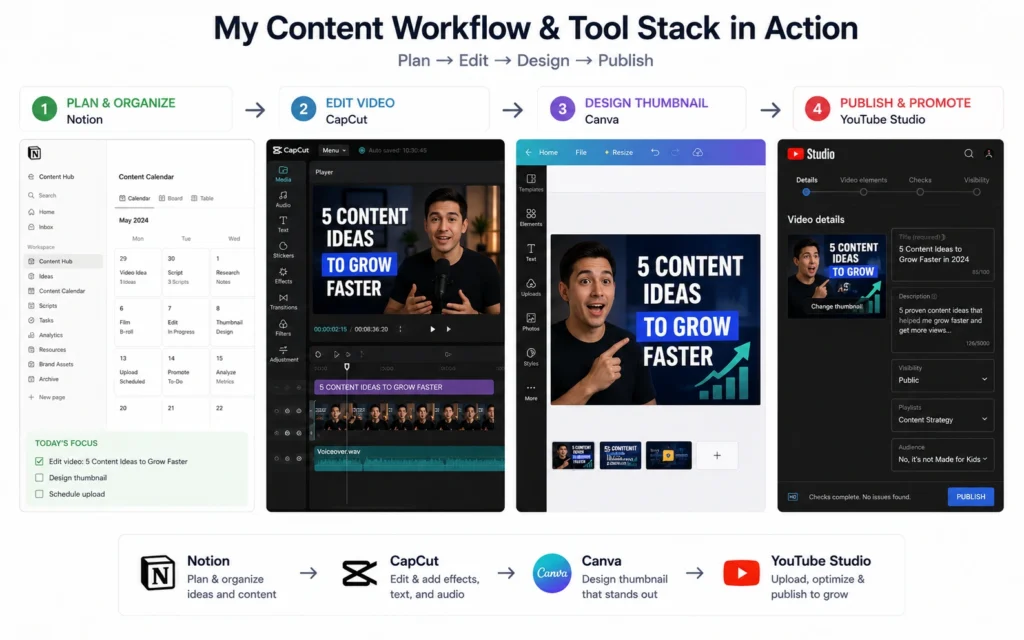
Here’s the stack I actually use after testing dozens of options. It’s boring. It works.
Planning: Notion (Free) I keep every video idea, script, and publishing date in one database. The template includes: title, hook, key points, thumbnail concept, and publish date. Nothing fancy — just a system that prevents the “what should I make today?” paralysis.
The alternative people use: scattered Notes app files and mental tracking. That works until you miss a deadline or forget a great idea from three weeks ago.
Recording: iPhone 13 or newer + Rode VideoMic Me-L ($60) Phone cameras in 2026 are better than most dedicated cameras from 2019. The bottleneck isn’t video quality — it’s audio. A $60 shotgun mic fixes the tinny phone sound immediately.
I tested this against a $1,200 Sony setup. Viewers couldn’t tell the difference in a blind test when both used good audio. They did notice when audio was bad, regardless of video quality.
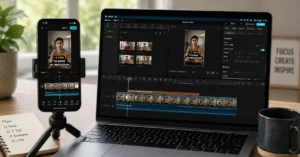
Editing: CapCut (Free) or DaVinci Resolve (Free) CapCut handles 90% of short-form editing needs. Auto-captions, basic cuts, transitions, and color correction all work well. Export time: 2–3 minutes for a 60-second video.
DaVinci Resolve is what I use for long-form YouTube videos. Steeper learning curve, but the color grading and audio tools are professional-grade. Export time: 8–12 minutes for a 15-minute video.
The tool I abandoned: Adobe Premiere. It’s powerful, but the subscription cost and complexity don’t justify it unless you’re editing 20+ hours of footage monthly.
Thumbnails: Canva Pro ($12.99/month) I create every thumbnail in Canva. The brand kit feature stores my fonts, colors, and logo, so every thumbnail looks consistent. The background remover saves 5 minutes per thumbnail.
Alternative: Photoshop. More control, but 10 times slower for simple thumbnails. I switched after calculating that my time was worth more than the $12.99 subscription.
AI Assistance: ChatGPT Plus ($20/month) I use this for three things only: brainstorming video angles, tightening scripts, and writing descriptions. I don’t let it write full scripts — the output sounds generic. But it’s excellent for breaking through creative blocks.
AI content workflows — Learn how to integrate AI tools without losing your voice.
What Each Tool Actually Does (And What It Doesn’t)
Content creator tools for beginners often get oversold. Marketing promises “one-click viral videos” or “AI that writes your content.” Reality is more mundane: tools save time on repetitive tasks, not creative thinking.
Video Editors What they do well: cutting footage, adding captions, color correction, audio leveling, and exporting in platform-specific formats.
What they don’t do: fix weak structure, compensate for poor lighting, or make boring content interesting.
The honest truth: I can make a compelling video in CapCut and a boring one in Premiere. The editor doesn’t determine quality — the creator does.
Thumbnail Designers What they do well: layering text over images, removing backgrounds, maintaining brand consistency, and A/B testing designs.
What they don’t do: predict which thumbnail will get clicks. You still need to understand curiosity gaps, contrast, and emotional triggers.
I’ve created 200+ thumbnails. The ones that perform best aren’t the most “designed” — they’re the clearest. A confused viewer doesn’t click.
Planning Systems What they do well: organizing ideas, tracking publishing schedules, storing scripts, and preventing duplicate content.
What they don’t do: generate good ideas or force you to publish. A perfect Notion system with zero published videos is just digital hoarding.
AI Writing Tools What they do well: overcoming blank-page syndrome, suggesting alternative phrasings, summarizing research, and generating variations.
What they don’t do: replace your perspective or understand your audience better than you do. AI output without human editing sounds like every other AI-generated post.
I use AI to speed up drafting, not to avoid thinking. The difference shows in retention metrics.
YouTube video creation tools — Deep dive into platform-specific optimization.
Where People Waste Money (And What to Buy Instead)
The content creation industry profits from selling the idea that better tools create better creators. That’s backwards. Skill compounds; tools depreciate.
Mistake 1: Buying a $2,000 camera before 1,000 subscribers Your first 50 videos will be awkward. Your lighting will be inconsistent. Your audio will need work. A phone camera lets you learn without financial pressure.
What to buy instead: A $30 phone tripod and a $60 microphone. These improve quality more than a camera upgrade at this stage.
Mistake 2: Subscribing to five different tools “just in case” I did this in month three: Premiere ($20), After Effects ($20), Photoshop ($10), TubeBuddy ($15), and Descript ($15). Total: $80/month. I used 20% of the features and published less because I was constantly switching between apps.
What to do instead: Master one tool per category before adding another. I canceled four subscriptions and didn’t notice a quality drop.
Mistake 3: Choosing “all-in-one” platforms for simplicity Platforms like Riverside, StreamYard, or OpusClip promise to handle recording, editing, and publishing in one place. They’re convenient but mediocre at each task.
The trade-off: You save 10 minutes per video but lose creative control and quality. I use specialized tools that each do one thing well.
Mistake 4: Upgrading before hitting a real limitation I kept using free CapCut until I needed multi-cam editing for a specific video type. Then I upgraded to DaVinci Resolve. The limitation drove the purchase, not FOMO.
Rule: Only buy a tool when it unblocks revenue or saves 5+ hours per week.
short-form video editing — Master the specific techniques that retain viewers.
The Trade-Offs Nobody Mentions
Every tool choice involves a trade-off. Most reviews ignore this and present features as pure upside. Here’s what actually changes when you pick one tool over another.
Free vs. Paid Tools Free tools work until you need to scale. CapCut’s free version adds a watermark to exports. Canva’s free version limits brand kit storage. DaVinci Resolve’s free version lacks noise reduction.
The question isn’t “should I pay?” It’s “what limitation am I willing to accept?” I accepted watermarked exports for my first 20 videos. After that, the watermark felt unprofessional, and I upgraded.
Desktop vs. Mobile Editing Mobile apps (CapCut, InShot) are faster for short-form content. Desktop apps (Premiere, Final Cut) offer more control for long-form. I edit 60-second videos on my phone and 15-minute videos on my computer.
The trade-off: Speed versus precision. Choose based on your primary format, not what’s trendy.
AI-Assisted vs. Manual Workflows AI tools like Descript’s text-based editing or Runway’s auto-reframe save time but require review. I’ve caught AI adding wrong captions, removing important pauses, and misidentifying speakers.
The real time savings: 40–60%, not 90%. Budget review time or ship errors.
Subscription vs. One-Time Purchase Subscriptions (Adobe, Canva Pro) provide updates and cloud features but create ongoing costs. One-time purchases (Final Cut Pro, DaVinci Resolve) cost more upfront but no monthly fees.
I prefer subscriptions for tools I use daily (Canva) and one-time purchases for editors I might switch from later.
blogging and SEO tools — Extend your content strategy beyond video.
When to Upgrade Your Stack
Tool upgrades should follow milestones, not calendar dates. Here are the specific triggers that justify spending more.
Upgrade from Phone to Camera When:
- You’re publishing 3+ videos weekly and phone storage is a bottleneck
- You need shallow depth of field for a specific aesthetic
- You’re monetizing and professional appearance affects sponsorship rates
I upgraded at month 14, after landing my first sponsorship. The sponsor required 4K delivery, which my phone couldn’t reliably provide.
Upgrade from Free to Paid Editor When:
- Export time exceeds 20 minutes per video
- You need features like multi-cam, color grading, or advanced audio
- You’re spending more time working around limitations than creating
I switched from CapCut to DaVinci Resolve when I started making 15-minute videos. CapCut struggled with longer timelines and limited my color correction options.
Add AI Tools When:
- You’re spending 2+ hours on repetitive tasks (transcription, captioning, resizing)
- You have a consistent workflow to automate
- The tool saves 5+ hours monthly
I added Descript at 5,000 subscribers when transcription became a weekly 90-minute task. Descript cut it to 15 minutes.
Invest in Audio When:
- Viewers comment on audio quality
- You’re pitching sponsors who evaluate production value
- You’re recording interviews or podcasts
Audio quality matters more than video quality. I’d rather watch a 720p video with great audio than a 4K video with bad audio.
creator monetization platforms — Connect your tools to revenue streams.
The Tools I Stopped Using (And Why)
Abandoning tools is as important as choosing them. Here’s what didn’t make the cut and why.
Adobe Premiere Pro Why I quit: $20/month subscription for features I didn’t need. Export times were 30% slower than DaVinci Resolve on the same hardware. The interface felt cluttered for my workflow.
What I use instead: DaVinci Resolve (free). Same output quality, faster rendering, no subscription.
TubeBuddy Premium Why I quit: The keyword research and tag suggestions didn’t improve my rankings measurably. YouTube’s own analytics provided better insights.
What I use instead: YouTube Studio analytics + manual keyword research. Free and more accurate.
Later (Social Media Scheduler) Why I quit: I publish on three platforms max. Manually uploading takes 10 minutes per platform. The $25/month subscription saved 30 minutes weekly — not worth it.
What I use instead: Native schedulers (YouTube Studio, TikTok scheduler, Instagram Creator Studio). Free and platform-optimized.
Jasper AI Why I quit: $49/month for AI writing that sounded generic. ChatGPT Plus at $20/month produced similar output with more flexibility.
What I use instead: ChatGPT Plus. Better value, same results.
The pattern: I keep tools that save time or improve quality measurably. I cut tools that promise convenience but add complexity.
Frequently Asked Questions About Content Creator Tools
What content creator tools do I actually need to start?
You need three things: a recording tool (phone camera works), a basic editor (CapCut or DaVinci Resolve), and a thumbnail creator (Canva). Everything else is optional until you hit 1,000 followers. We spent $0 on tools for the first six months and still published 47 videos.
Are paid content creator tools worth it for beginners?
Not until you’ve proven your workflow. Free tools handle 90% of beginner needs. Pay only when a specific limitation blocks revenue — like needing better audio for sponsorships or faster rendering to increase output. We waited until month 8 before buying our first paid tool.
How many tools should a content creator use?
Three to five maximum. More tools create more friction, not better content. The best creators we’ve studied use: one editor, one design tool, one planning system, and optionally one AI assistant. Tool stacking is procrastination disguised as optimization.
What’s the best all-in-one content creator tool?
There isn’t one. All-in-one platforms sacrifice depth for breadth. You’re better off with specialized tools that do one thing well. That said, Notion comes closest for planning and organization, while Descript handles video editing and transcription in one place.
Continue Exploring
- For deeper execution, read our guide to YouTube video creation tools for platform-specific optimization tactics.
- If you’re ready to connect your tools to revenue, explore creator monetization platforms to understand which channels actually convert.