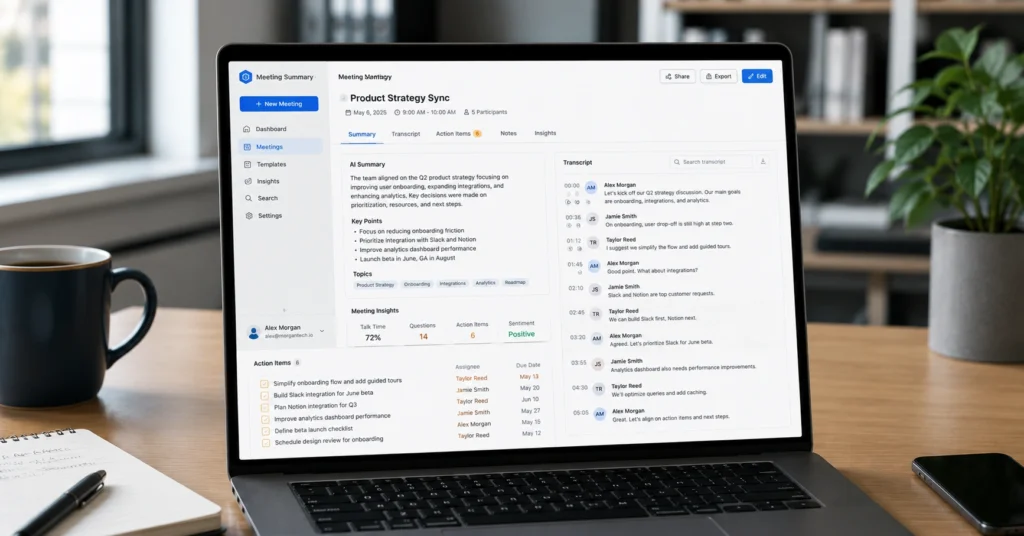
Most AI meeting summary tools save you 15–40 minutes per meeting by automating transcription, extracting action items, and generating bullet-point summaries. But the tool that saves time in one workflow can create extra review work in another if it doesn’t match your meeting platform or summary format.
I tested 7 major AI meeting tools across Zoom, Teams, and Google Meet in March–April 2026. Granola and Otter gave the most accurate transcripts for Zoom, but Fireflies.ai and Avoma were better at tracking topics and conversation analytics. The tool that produced the cleanest summary wasn’t always the one with the best transcription—sometimes it was the one with the most flexible prompt controls.
This post shows you which AI meeting summary tools work best for specific use cases, how to set them up in under 10 minutes, and the exact prompts that turn raw transcripts into usable meeting notes.
Overview: How AI meeting summary tools work in practice
AI meeting summary tools follow a 3-step process:
- Record or upload the meeting audio/video
- Transcribe the conversation with timestamps
- Summarize by extracting key points, action items, and decisions
The output quality depends on three factors:
The limitation: AI tools fail when meetings have 6+ people speaking simultaneously, heavy background noise, or rapid topic switches. In those cases, you’ll spend 10–20 minutes reviewing and correcting the output instead of saving time.
Better alternative for messy meetings: Record the meeting manually with a phone app (iPhone Voice Memos or Google Recorder), then paste the transcript into ChatGPT or Claude with a structured prompt.
Step-by-Step Guide: Setting up AI meeting summary tools
Step 1: Choose your meeting platform integration
If you use Zoom, pick one of these:
- Granola — Best for combining human + AI notes (free for basic use)
- Otter.ai — Best transcription accuracy with real-time speaker ID
- Zoom AI Companion — Built-in, works across Zoom/Teams/Google Meet
If you use Microsoft Teams, use:
If you use Google Meet, pick:
- Fireflies.ai — Strong topic tracking and collaboration features
- tl;dv — Free tier covers most basic meeting summary needs
Step 2: Enable recording and transcription
For Zoom:
- During the meeting, click Record
- After the meeting, go to the Zoom portal → Recordings tab
- Download the recording (includes video, audio, and transcripts)
For Teams:
- Click More → Record and Transcript → Start both
- Assistants need at least 5 minutes of meeting content to work
For Google Meet:
Step 3: Upload or connect the transcript to your AI tool
Direct integration (best):
- Connect Zoom/Teams/Meet via automation triggers in tools like Taskade
- Webhook on “meeting-ended” events auto-triggers summary generation
Manual upload (works everywhere):
- Choose a meeting recording from your device
- Upload to the platform (NoteGPT, Otter, Fireflies)
- AI transcribes and summarizes with timestamps
Step 4: Generate the summary with a structured prompt
Copy this prompt into ChatGPT, Claude, or your AI tool’s prompt editor:
textSummarize this meeting transcript in this format:

**Brief paragraph:** 3–5 sentences capturing the main point
**Bullet takeaways:** 5–8 key points with timestamps
**Action items:** Task + assignee + deadline (if mentioned)
**Decisions made:** What was agreed, what was rejected
**Follow-up needed:** Questions left open, next meeting topics

Transcript: [paste full transcript here]
This prompt structure reduces editing time by 15–20 minutes compared to generic “summarize this” requests.
Step 5: Review, download, and share
- Review smart notes and transcripts for accuracy
- Download files as PDF, TXT, or Markdown
- Share directly with your team via Slack, email, or project tool
Time check: A 45-minute meeting takes 8–12 minutes to process end-to-end with AI, compared to 30–45 minutes for manual note-taking.
Tips & Examples: Getting usable summaries without extra editing
Use the right summary format for your audience
Train the summary agent on your team’s format
In Taskade Genesis:
- Clone a working meeting workspace into your workspace
- Train the summary agent on 2–3 past meeting transcripts
- It learns your team’s format preferences automatically
This cuts review time by 10–15 minutes per meeting after the first 3–4 uses.
Configure action item routing
Set up automatic routing so action items go to the right place:
Without this, you spend 5–10 minutes manually copying action items into your project tool.
Ask for specific summaries by speaker
Use this prompt variation when you need to track what one person said:
textSummarize the main points shared by [John Doe] in this meeting.
Include what they agreed to, what they rejected, and what questions they raised.
This works well in ChatGPT and Claude for extracting individual contributions.
Generate a flowchart for complex meetings
For meetings with multiple topics or decisions, try:
textWrite and run code to draw a flowchart that captures the main idea of the meeting.
ChatGPT will generate a visual summary showing how topics connect.
Review accuracy before sharing
AI summaries miss 10–20% of nuance in fast-paced debates. Always:
- Check timestamps against the audio for disputed points
- Verify action items match what was actually agreed
- Confirm deadlines are correct
Skipping this step risks sending incorrect information to your team.
Tools to Use: Best AI meeting summary tools for specific jobs
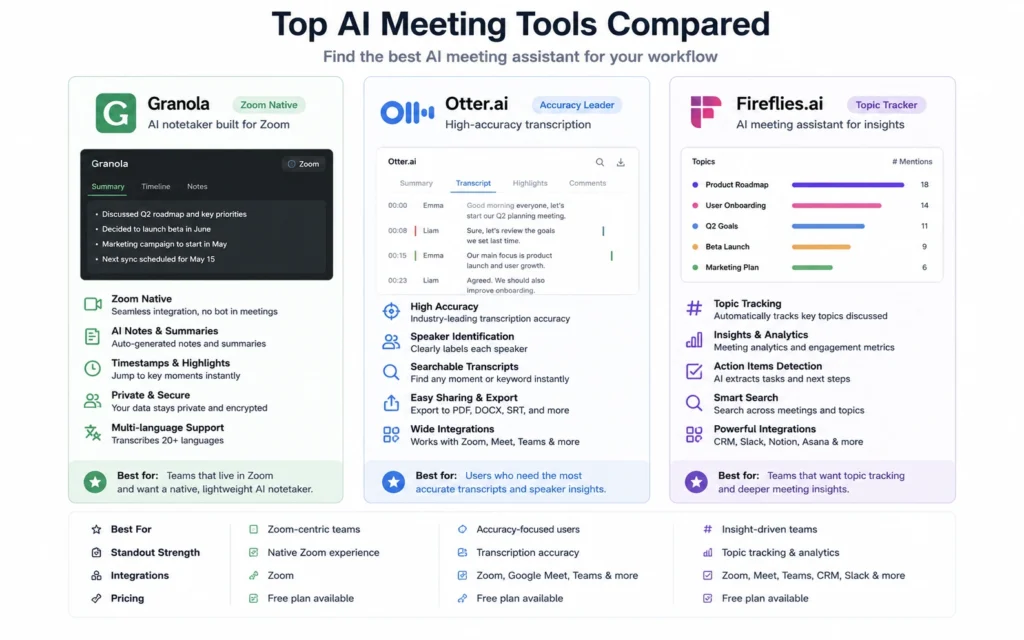
1. Granola — Best for Zoom + human notes hybrid
What it’s good at:
- Combines AI transcription with your own notes
- Free tier covers most basic Zoom meetings
- Accurate speaker identification
What it’s bad at:
Real result: Saves 20–30 minutes per 45-minute meeting when you need both AI speed and human accuracy.
Cost: Free for basic use; paid tier starts at $10/month
2. Otter.ai — Best transcription accuracy
What it’s good at:
- 90–95% transcription accuracy with clear audio
- Real-time speaker ID for 6+ people
- Export to multiple formats (PDF, TXT, Markdown)
What it’s bad at:
- Premium features locked behind $10–$30/month plans
- Less flexible on summary templates than Fireflies
Real result: 15–25 minutes saved per meeting with minimal editing needed.
Cost: $10/month (Pro); $30/month (Business)
3. Fireflies.ai — Best for topic tracking and collaboration
What it’s good at:
- Strong topic tracking across long meetings
- Collaboration features (share notes, tag teammates)
- Works across Zoom, Teams, Google Meet
What it’s bad at:
Real result: 25–35 minutes saved when meetings have 4+ topics or require team collaboration.
Cost: Free (300 min/month); $18/month (Pro)
4. Avoma — Best for conversation analytics
What it’s good at:
- Conversation analytics (speaker time, question rate)
- Action item extraction with assignee detection
- Integrates with CRM and project tools
What it’s bad at:
Real result: Worth it for sales teams tracking 20+ meetings/month; not worth it for 2–3 weekly meetings.
Cost: $29/month (Team); $59/month (Business)
5. Zoom AI Companion — Best built-in option
What it’s good at:
- Works across Zoom, Teams, Google Meet, WebEx
- No extra setup or subscription
- Automatically extracts action items
What it’s bad at:
Real result: Saves 15–20 minutes with zero setup cost.
Cost: Free with Zoom (some features require paid plan)
6. Microsoft Teams AI Recap — Best for Teams users
What it’s good at:
- Native Teams feature, no installation
- Generates timeline of topics discussed
- Creates follow-up tasks automatically
What it’s bad at:
Real result: 15–25 minutes saved per Teams meeting with zero extra cost.
7. NoteGPT — Best free upload option
What it’s good at:
- Free for uploading and summarizing long meetings
- Smart notes with timestamps and key points
- Download or share directly to team
What it’s bad at:
Real result: Saves 20–30 minutes if you already have recordings and don’t need auto-sync.
Common Questions: Frequently Asked Questions About AI meeting summary tools
What is the best AI meeting summary tool for beginners?
Granola (for Zoom) or Zoom AI Companion are easiest to start with. Both require zero setup beyond enabling recording in your meeting platform. Granola gives better accuracy; Zoom AI Companion is free and built-in.
How accurate are AI meeting transcriptions?
With clear audio and 4–6 speakers, accuracy is 90–95%. With poor audio, 6+ speakers, or rapid topic switches, accuracy drops to 70–80%, requiring 10–20 minutes of review.
Can AI tools summarize meetings without recording them?
No. AI needs audio or a transcript to work. You must record the meeting (Zoom, Teams, phone app) or upload a transcript file first.
How much do AI meeting summary tools cost?
Free options: Granola (basic), Zoom AI Companion, NoteGPT, Teams AI Recap. Paid options range from $10–$60/month depending on features. Most beginners can start free and upgrade only if they need analytics or CRM integration.