The chatgpt mobile app is not just a smaller version of the desktop website. If you only use it to type out queries with your thumbs, you are using the wrong input for the wrong device.
Desktop interfaces are built for synthesis. They handle multiple tabs, heavy copy-pasting, and long-form document formatting perfectly. Mobile phones are built for capture. They have microphones, cameras, and GPS, and they travel with you. To get real value from the mobile version, you must stop treating it like a search engine and start treating it as an ambient capture system.
Using the advanced voice feature to ramble through a messy project plan during a 15-minute commute saves you from staring at a blank screen later. You talk; the software structures the thought. Pointing the camera at a whiteboard to extract three precise action items takes 20 seconds. Typing those same notes takes five minutes.
Here is exactly how to configure the iOS and Android applications to reduce friction, bypass typing, and speed up your first drafts before you even sit down at your desk.
What the chatgpt mobile app actually solves
Most bad AI habits start when users force a desktop workflow onto a 6-inch piece of glass.
Swiping between a PDF, your email client, and the chat interface to build a prompt is slow. The mobile clipboard is fragile. One wrong tap, and you lose your context. The mobile application solves a completely different problem: capturing unstructured input in the physical world and turning it into organized text.
If you understand that distinction, the app becomes a massive time-saver.
- You bypass the transcription phase: Physical data—like meeting notes on a whiteboard or a printed receipt—no longer needs to be manually typed.
- You bypass the drafting phase: Messy thoughts spoken out loud become bulleted outlines you can refine later.
- You bypass the search phase: Taking a picture of an error code on your laptop screen gives you the solution instantly, saving you from typing a long string of numbers into Google.
You need to lean into the hardware constraints. The phone is bad for heavy editing. It is brilliant for getting the first draft out of your head and into text.
Setting up Custom Instructions to bypass repetitive typing
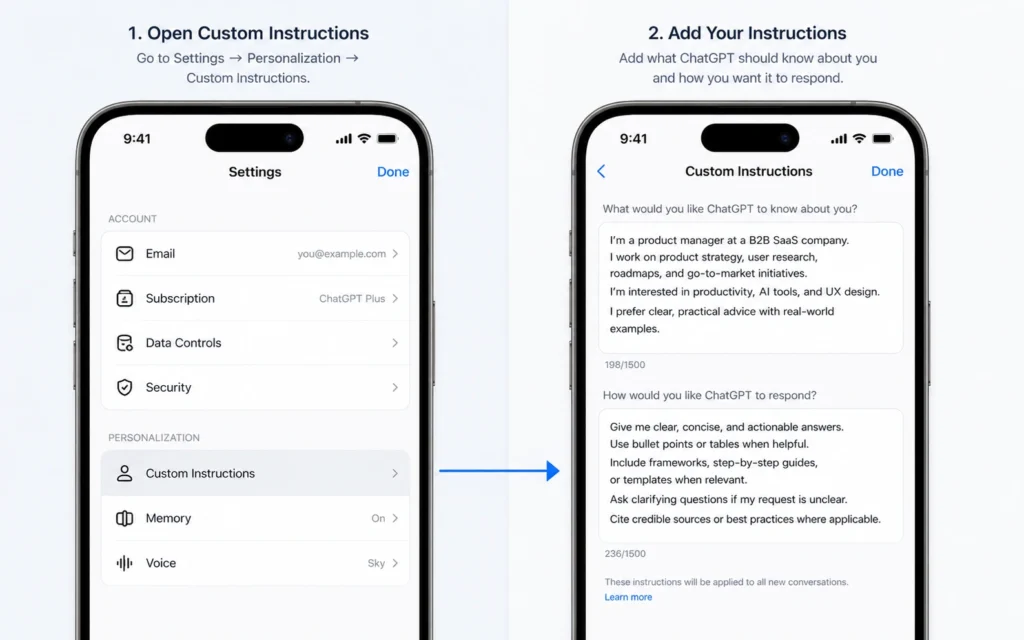
By default, the app treats every new chat like you just met. That wastes time on a small screen. If you have to type “Give me a short answer without bullet points” every time you ask a question, the tool is slowing you down.
You fix this by setting up Custom Instructions immediately.
Open the app. Tap the menu icon, tap your name at the bottom, and select Custom Instructions.
You will see two boxes. In the second box—which asks how you want the app to respond—add hard constraints designed specifically for a mobile context.
“I am reading this on a phone. Never write conclusions or summaries unless I ask. Never apologize. Give me the direct answer in as few words as possible. Use short paragraphs. Do not use complex formatting that requires horizontal scrolling.”
This setup eliminates the polite, bloated filler the model defaults to. When you ask a quick question while walking to a meeting, you get a clean, readable answer that fits on one screen.
Using Voice Mode to structure messy thinking out loud
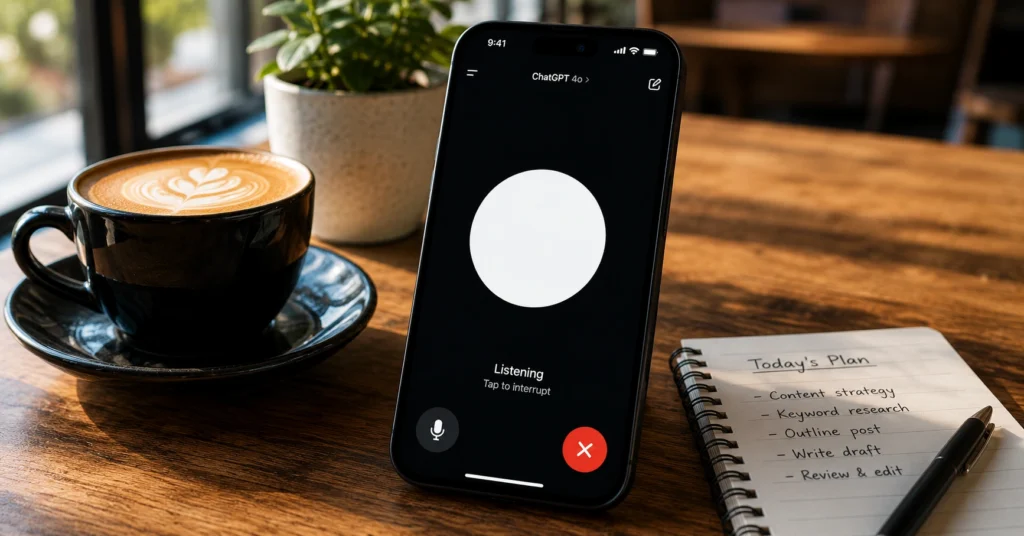
Voice input is the highest-leverage feature in the app. It fundamentally changes how you approach writing.
Instead of typing out a rigid outline, put your headphones on. Open a new chat, tap the headphone icon next to the text box, and just start talking.
The mechanism matters here. Do not treat it like Siri or Google Assistant, where you ask a single question and wait. Treat it like a stenographer who can organize logic.
Use this prompt structure: “I am going to brain dump some ideas for next quarter’s marketing strategy. Do not reply until I say I am finished. When I am done, take everything I said, remove the repetition, and organize my thoughts into a chronological list of required tasks.”
Then, talk. Include irrelevant details. Mention your constraints. Ramble. When you finish, the app outputs the structured list. You just saved 30 minutes of structuring.
There is a hard limitation here. Extended Voice Mode sessions drain your battery fast. A 20-minute continuous voice session can drop a phone battery by 15%. The device will also get noticeably warm. Keep a charger nearby if you plan to dictate a heavy strategy document. To dive deeper into these spoken workflows, review our guide on using voice mode for complex workflows.
Using the camera integration to extract physical data
Typing data from a physical piece of paper into a phone is tedious. The vision integration allows you to pull that data directly into your workflow.
Tap the camera icon inside the chat interface. Take a photo of the document, the menu, or the complicated spreadsheet on your monitor. Then, give a precise instruction.
“Extract only the column showing the 2026 budget numbers and format it as a comma-separated list.”
The application reads the image and returns raw text you can copy directly into a spreadsheet app. This effectively replaces traditional scanning apps and manual data entry.
But it requires strict supervision. Always check the numbers. The vision model occasionally hallucinates a ‘3’ as an ‘8’ if the handwriting is messy or the lighting is poor. It once turned a $300 expense into an $800 one during a receipt-scanning test because a shadow obscured the ink. Use it to speed up the heavy lifting, but never skip the review phase.
Bypassing the app icon: Widgets and shortcuts
If you have to unlock your phone, find the app, wait for it to load, and tap a button to start talking, you will likely just open a blank note instead. Friction kills new workflows.
You must bring the tool to the surface of your device.
On iOS: Hold down on your lock screen and add the ChatGPT widget. Specifically, add the Voice Mode widget. If you have an iPhone 15 Pro or newer, map the physical Action Button on the side of the phone to launch Voice Mode. This allows you to press a physical button and start talking immediately, without looking at the screen.
On Android: Long-press your home screen and add the ChatGPT widget. You can choose a shortcut that directly opens the camera or the voice interface. Place it where your thumb naturally rests.
When the tool is one tap away, you actually use it. When it requires navigation, you ignore it.
Mistakes that make the app feel like a clunky search bar
Most people abandon the app because they use it poorly. If you find the experience frustrating, you are likely making one of these errors.
Treating it like Google. If you ask for the capital of France or the weather tomorrow, you are wasting time. Use a standard search engine for raw facts. Use the language model to process information, summarize long text, or brainstorm concepts.
Ignoring the share sheet. Trying to copy text from a web browser, open the ChatGPT app, paste it, jump back to the browser for the second half, and paste it again is infuriating. Both iOS and Android have system-wide share sheets. When you are looking at a webpage or a PDF, tap the share button, select ChatGPT, and it will drop the link or document directly into a new chat. Add your prompt and send.
Not waiting for the haptic feedback. The application uses subtle vibrations to tell you when it has finished generating text. Learn to wait for the tap instead of staring at the screen while the text slowly types itself out. Put the phone down, let it work, and pick it up when it vibrates.
Handling messy files directly from your phone
Phones are terrible file managers. When someone emails you a 40-page PDF, reading it on a small screen is a miserable experience.
Instead of squinting, tap the plus icon next to the chat box and upload the file from your iCloud or Google Drive.
Give it a narrow constraint. Do not ask “What is this about?” The answer will be too vague to be useful.
Ask exactly what you need. “Read this contract. Extract the three clauses that dictate the termination terms. Ignore everything else.” You get the exact paragraph you need in seconds. If you want to understand how to frame these requests better, read our framework on prompt structures that work.
Free vs. Plus on mobile: What changes when you pay
You can download the app and use it for zero cost. But the experience changes significantly depending on your account tier.
The free version provides access to text generation, basic file uploads, and standard voice features. For quick thoughts and simple extraction tasks, it is completely sufficient.
ChatGPT Plus—the $20 monthly subscription—unlocks GPT-4o with much higher usage limits, faster response times, and the advanced voice mode that allows you to interrupt the model while it speaks. It also handles complex image recognition with far more accuracy.
The verdict is straightforward. If you only use the app to draft quick emails or summarize short articles, stay on the free tier. If you rely on voice to dictate long documents or use the camera to extract data daily, the paid tier pays for itself in time saved within the first three days of the month.
Frequently Asked Questions About the ChatGPT Mobile App
Can I use the ChatGPT mobile app offline?
No. The app requires an active internet connection to send your queries to the server and generate responses. It does not process requests locally on your phone.
Does the mobile app sync with my desktop account?
Yes. As long as you log in with the same credentials, every conversation you start on your phone appears immediately on your desktop browser, and vice versa.
Is the official ChatGPT app free to download?
Yes. The official app from OpenAI is entirely free to download on both iOS and Android. You only pay if you choose to upgrade to the Plus subscription inside the app.