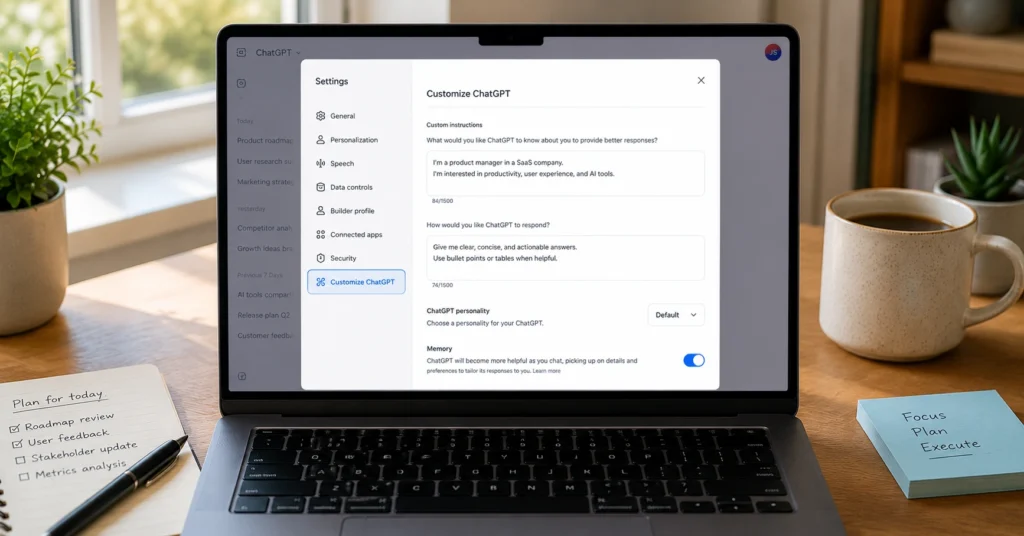
ChatGPT Custom Instructions let you tell the model who you are and how you want it to respond—once, and it remembers for every chat. Set them up correctly and you stop repeating the same context in every prompt. Set them up badly and you get polished but useless answers that ignore your actual needs.
I spent 17 minutes last Tuesday setting up custom instructions, and the next morning I saved 12 minutes on a single drafting task because ChatGPT already knew my audience, tone, and formatting rules. That’s the real value: not novelty, but repetition without re-explanation.
This post shows you exactly how to set up chatgpt custom instructions in 2026, what to write in each box, and which mistakes waste the most time. You’ll leave with a working setup, two copy-paste templates, and a clear sense of when this feature actually helps—and when it doesn’t.
What ChatGPT Custom Instructions Actually Do (and Don’t Do)
Custom instructions are preferences you set once that ChatGPT applies to every new conversation. They answer two questions: “What should ChatGPT know about you?” and “How should ChatGPT respond?”.
The feature doesn’t remember chat history. It doesn’t change the model’s knowledge cutoff. It doesn’t make ChatGPT smarter about facts. What it does is remove the need to restate your role, audience, tone, and format rules every single time you start a new chat.
Here’s the trade-off: once you set custom instructions, every new chat inherits them. If your instructions are vague (“be helpful”), you get vague results everywhere. If they’re specific (“I’m a content marketer in SEO; use short paragraphs, no bullet points unless I ask”), you get consistent output without repeating yourself.
I once set custom instructions that said “be concise.” For three weeks I got one-sentence answers that missed the point. I replaced it with “be concise but show reasoning for complex decisions,” and the output quality jumped immediately. That’s the difference between a slogan and a workflow rule.
Step-by-Step Guide: How to Set Up ChatGPT Custom Instructions in 2026
Follow these steps on web or mobile. The interface changed slightly in early 2026, so older tutorials show outdated menus.
Step 1: Open Settings
On web or desktop:
- Click your name or profile icon in the bottom-left corner of the sidebar.
- Select Settings from the menu.
- Click Personalization in the left panel.
- Find Custom Instructions.
On iOS or Android:
- Tap your profile icon.
- Go to Settings → Customize ChatGPT.
- Make sure Enable customization is toggled ON.
Step 2: Fill the First Box
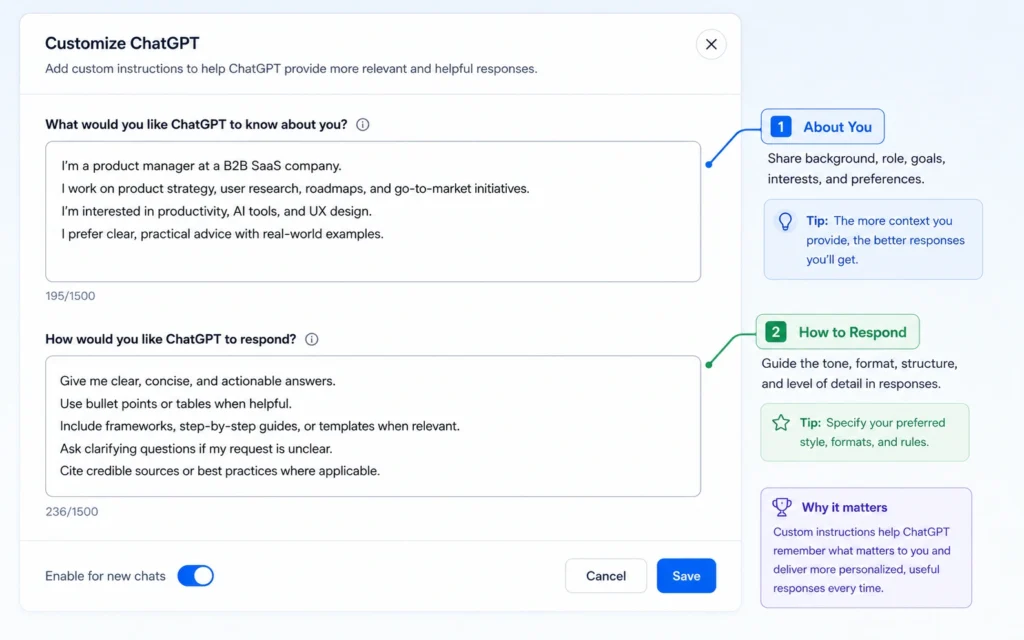
The first box asks: “What would you like ChatGPT to know about you to provide better responses?”
Enter details that don’t change often:
- Your role (e.g., “SEO content writer,” “small business owner,” “high school teacher”)
- Your audience (e.g., “non-technical founders,” “parents of toddlers,” “college students”)
- Your goals (e.g., “write SEO blog posts,” “create lesson plans,” “draft client emails”)
- Constraints (e.g., “I have 30 minutes per task,” “I need plain English, no jargon”)
Example (real, tested):
I’m a content marketer in SEO. I write blog posts for non-technical founders. My goal is clarity, not buzzwords. I have 30–45 minutes per draft. I need short paragraphs, no bullet points unless I ask, and examples with real numbers.
Step 3: Fill the Second Box
The second box asks: “How would you like ChatGPT to respond?”
Specify tone, format, and structure:
- Tone: “friendly but direct,” “formal,” “neutral”
- Format: “short paragraphs,” “use headings,” “no markdown unless I ask”
- Language: “plain English,” “avoid jargon,” “explain technical terms once”
- Examples: “show a small example when I ask for a template”
Example (real, tested):
Use a friendly but direct tone. Write short paragraphs (2–4 sentences). Use headings for long answers. Don’t use bullet points unless I ask. Explain technical terms once, then use them normally. Show a small example when I ask for a template.
Step 4: Save and Test
- Toggle Enable customization ON (if not already).
- Click Save.
- Start a new chat and test with a simple prompt like “Give me a 3-paragraph blog intro about SEO for founders”.
Your custom instructions are applied immediately to all new chats.
Templates You Can Copy (and When to Use Each)
Generic instructions produce generic output. Below are three tested templates for common use cases. Copy one, then edit the details to match your actual work.
Template 1: SEO Content Writer
Box 1 (About you):
I’m an SEO content writer in Punjab, India. I write blog posts and landing pages for SaaS founders. My audience is non-technical founders who need clear explanations. I publish 2–3 posts per month. I care about keyword intent, not keyword density.
Box 2 (How to respond):
Write in clear, direct English. Use short paragraphs (2–4 sentences). Use H2 and H3 headings for long answers. Include one concrete example when I ask for a template. Avoid buzzwords like “game-changing” or “revolutionary.” Show reasoning before conclusions for complex topics.
Best for: Blog posts, SEO briefs, content outlines.
Template 2: Beginner Learning AI
Box 1 (About you):
I’m new to AI and ChatGPT. I want to learn practical workflows, not theory. I have 20–30 minutes per day to practice. I get confused by jargon. I need clear steps and small examples.
Box 2 (How to respond):
Explain ideas in plain English. Define technical terms once, then use them normally. Break tasks into small steps. Give a small example for each step. Don’t assume I know tools I haven’t mentioned. Be patient but direct.
Best for: Learning prompts, workflows, and tool setup.
Template 3: Founder / Operator
Box 1 (About you):
I’m a founder running a small business. I need decisions, not essays. I have 15–20 minutes per task. I care about speed, clarity, and trade-offs. I don’t need background lectures.
Box 2 (How to respond):
Be direct. Give the answer first, then 2–3 supporting points. Show trade-offs when there’s no clear best option. Use short paragraphs. Don’t repeat the question. Skip motivational language.
Best for: Decision support, strategy, quick analysis.
Pick one template, paste it, then edit the details. Don’t leave “I’m a content marketer” if you’re actually a teacher. The model can’t read your mind.
What ChatGPT Custom Instructions Are Good At (and Where They Fail)
Custom instructions work well for three things:
- Removing repetition – You stop restating your role, audience, and format rules in every chat.
- Setting tone and format – You get consistent paragraph length, heading use, and style without reminding the model each time.
- Anchoring context – You give the model a稳定的 baseline for who you are and what you’re trying to do.
They fail in three common ways:
- Too vague – “Be helpful” or “be concise” produces bland output. Vague instructions = vague results everywhere.
- Too long – If your instructions are 500+ words, the model may miss key points. Keep them under 200 words per box when possible.
- Too rigid – “Never use bullet points” can break when bullet points are actually the best format. Use “prefer” or “unless I ask” instead of absolute rules.
I once set “never use bullet points” and spent 20 minutes rewriting a comparison table because the model refused to format it cleanly. I changed it to “prefer paragraphs unless bullet points clearly improve clarity,” and the problem disappeared. Absolute rules in custom instructions often backfire.
Common Mistakes That Waste Time (and How to Avoid Them)
Mistake 1: Writing Slogans Instead of Rules
Bad: “Be helpful and creative.”
Good: “Give the answer first, then 2–3 supporting points. Show trade-offs when there’s no clear best option.”
Slogans sound nice but don’t change behavior. Rules change behavior.
Mistake 2: Including Temporary Details
Don’t write “I’m working on a project about Florida travel right now.” That context expires. Instead, write “I often write about travel, especially Florida and Miami. I need clear, factual details, not hype.”
Mistake 3: Setting Contradictory Rules
“Be concise” and “explain everything in detail” contradict each other. The model will pick one and ignore the other. Decide what you actually want: speed or depth.
Mistake 4: Not Testing After Save
After saving, start a new chat and test with a real prompt. If the output doesn’t match your expectations, edit the instructions and test again. Don’t assume it works just because you clicked Save.
When to Use Custom Instructions (and When to Skip Them)
Use custom instructions when:
- You run ChatGPT regularly (several times per week).
- You repeat the same context in every prompt (role, audience, format).
- You want consistent tone and structure across chats.
Skip custom instructions when:
- You use ChatGPT rarely (once a month or less).
- Every task is completely different (no repeatable context).
- You prefer to set context per chat using a prompt instead.
For beginners, start with a simple version of Template 2 above. You can refine it after 5–10 chats.
FAQ: Frequently Asked Questions About ChatGPT Custom Instructions
What are chatgpt custom instructions?
ChatGPT custom instructions are preferences you set once that apply to every new conversation. They tell ChatGPT what to know about you and how to respond, so you don’t repeat the same context in every prompt.
How do I turn on custom instructions in ChatGPT 2026?
On web: click your name → Settings → Personalization → Custom Instructions → toggle Enable customization ON. On mobile: Settings → Customize ChatGPT → toggle Enable customization ON. Then fill both boxes and click Save.
Do custom instructions apply to old chats?
No. Custom instructions apply only to new chats started after you save them. Old chats keep their original context.
Can I use custom instructions on mobile?
Yes. On iOS and Android, go to Settings → Customize ChatGPT, toggle Enable customization ON, and fill the Custom Instructions field.
What happens if I turn off custom instructions?
If you toggle Enable customization OFF, ChatGPT stops using your custom instructions for new chats. You can turn it back on later and they’ll work again.
Continue exploring:
- How to Use ChatGPT — Go deeper into core ChatGPT workflows and setup.
- Prompt Engineering Basics — Learn how to write prompts that work with your custom instructions.